
How to Use Claude Artifacts? Step-by-Step Tutorial with Examples
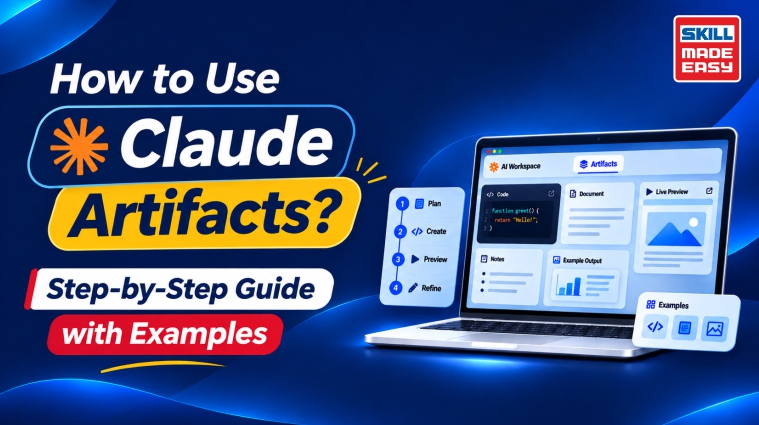
Artificial intelligence is making it easier to turn ideas into practical digital products without requiring advanced programming or design skills. One such feature is Claude Artifacts, which allows you to create interactive applications, visualizations, documents, websites, and other digital content simply by describing what you want.
Instead of receiving only a text-based answer, you can ask Claude to build something you can preview, edit, and share. For example, you can create a personal expense tracker, an interactive quiz, a project dashboard, or a website prototype without writing code from scratch.
But what are Claude Artifacts, how do they work, and how can you create your first one? Whether you are a student, developer, content creator, or working professional, this Claude Artifacts tutorial will walk you through the process. You will also explore practical Claude Artifacts examples, learn how to edit and share your creations, and understand how they differ from regular Claude chats.
Table of Contents
- 1. What Are Claude Artifacts?
- 2. How Do Claude Artifacts Work?
- 3. How to Create Claude Artifacts: Step-by-Step
- 4. How Do Sharing Options Vary by Plan?
- 5. What Can You Build with Claude Artifacts?
- 6. Claude Artifacts Examples for Beginners
- 7. How to Edit, Preview and Share Claude Artifacts
- 8. Claude Artifacts vs Regular Claude Chat: Key Differences
- 9. Common Problems While Using Claude Artifacts
- 10. Conclusion
- 11. People Also Ask
What Are Claude Artifacts?
Claude Artifacts are standalone digital outputs generated by Claude AI that you can view, edit, reuse, and share separately from your regular conversation. They can include documents, presentations, websites, interactive applications, diagrams, dashboards, and visualizations.
Unlike a normal Claude response that appears as text in a chat, an artifact opens in a separate workspace or panel alongside your conversation. This makes it easier to work on substantial content, make changes, and revisit your creations later.
For example, if you ask Claude to create a monthly expense tracker, it can generate an interactive tool where you enter expenses, categorize transactions, and view spending summaries.
Some common types of Claude Artifacts include:
- •Documents: Structured reports, guides, notes, and written content.
- •Websites: Single-page HTML websites, landing pages, and prototypes.
- •Interactive applications: Calculators, quizzes, productivity tools, and trackers.
- •Visualizations: Charts, graphs, and interactive data representations.
- •Diagrams: Flowcharts, process diagrams, and visual explanations.
- •Code: Standalone code snippets and interactive React components.
Claude Artifacts are available across Free, Pro, Max, Team, and Enterprise plans, although certain advanced capabilities depend on your subscription and organizational settings.
You can learn more from the official Anthropic guide to Claude Artifacts.
How Do Claude Artifacts Work?
Claude Artifacts work by converting your natural-language instructions into structured digital content. You describe what you want to build, Claude generates the required content or code, and the result appears in a separate artifact window.
The process generally involves four stages:
- 1.Describe your idea: Explain what you want Claude to create, including its purpose, features, and expected output.
- 2.Generate the artifact: Claude interprets your instructions and generates the required document, design, code, or application.
- 3.Preview the output: You can interact with the artifact, review its appearance, and check whether it meets your requirements.
- 4.Improve and share: Ask Claude to modify specific elements, refine the design, or add features. Once satisfied, you can share or export the supported output.
For example, suppose you want to create a simple JavaScript quiz application. You can ask Claude to generate a quiz with multiple-choice questions, answer validation, a score counter, and a restart button.
Claude generates the application, allowing you to test it directly instead of manually writing and running every line of code.
Some artifacts can also include Claude-powered AI features, allowing users to interact with the application through natural-language inputs. These features have their own availability and usage requirements.
How to Create Claude Artifacts: Step-by-Step
You do not need advanced coding knowledge to create basic Claude Artifacts. Follow these steps to build your first artifact.
Step 1: Open Claude AI
Visit Claude.ai and sign in to your account. You can create an artifact directly through a conversation or start with an available template from the Artifacts section.
Step 2: Start a New Conversation
Click on “New Chat” and describe the artifact you want to create. Be specific about the purpose and functionality.
Example prompt: “Create an interactive monthly expense tracker using HTML, CSS, and JavaScript. Include fields for expense name, amount, category, and date. Add a section showing total monthly expenses and a category-wise spending summary. Keep the design simple and mobile-friendly.”
Step 3: Let Claude Generate the Artifact
Claude will analyze your prompt and generate the required content or application. When the output qualifies as an artifact, it appears in a dedicated panel beside your conversation.
You can preview the result and interact with its available features.
Step 4: Test the Artifact
Check whether all the requested features work correctly. For an expense tracker, add sample transactions, change categories, and verify whether the totals update correctly.
If something does not work, explain the issue to Claude.
Step 5: Refine Your Creation
Ask Claude to improve the artifact by changing its layout, adding functionality, fixing errors, or modifying its appearance.
Example prompt: “Add a monthly spending chart and a delete button for each transaction. Improve the layout for mobile screens without changing the existing functionality.”
Step 6: Save or Share Your Artifact
Once you are satisfied, use the available sharing or export options. Depending on the artifact type and your plan, you may be able to download it, export it, share a link, or publish it.
Here is a breakdown of the available options:
| Artifact Type | Export or Download Options | Sharing Options |
|---|---|---|
| Claude Docs | Word (.docx), PDF, Markdown, Google Docs | Share with a link or invited collaborators, depending on plan |
| Claude Slides | PowerPoint (.pptx), PDF, Google Slides | Share with a link or invited collaborators |
| Claude Design | ZIP, PDF, PowerPoint, standalone HTML, and supported third-party tools | Share through available artifact-sharing permissions |
| Claude Motion (beta) | MP4 video | Share through available artifact-sharing permissions |
| Claude Dashboards (beta) | No general file-export format specified in the current documentation | Share through available artifact-sharing permissions |
| Legacy chat artifacts | Copy content, view code, and download | Publish or share a link, depending on plan |
Want to Learn Claude AI Beyond the Basics? Explore our Free Master Claude in 10 Days course and learn how to use Claude AI more effectively through practical examples and hands-on learning.
Explore the Free CourseHow Do Sharing Options Vary by Plan?
- •Free: You can create artifacts and publish eligible legacy chat artifacts publicly. Standard new artifact sharing with anyone through a link is not available.
- •Pro, Max, and Ultra: You can share supported new artifacts with anyone who has the link or invite specific people by email (beta). You can also publish eligible legacy artifacts.
- •Team: You can share artifacts with people in your organization and, when enabled by an owner, externally through links. Email invitations are also available.
- •Enterprise: You can share with specific people or groups, everyone in your organization, and external users when the organization owner enables external sharing.
What Can You Build with Claude Artifacts?
Claude Artifacts support several types of digital creations, making them useful for both personal and professional activities.
Here are some things you can build:
- •Web applications: Create calculators, task managers, productivity tools, and simple interactive applications.
- •Websites and landing pages: Generate website layouts, portfolio pages, and product landing page prototypes.
- •Educational resources: Build interactive quizzes, flashcards, learning guides, and visual explanations.
- •Business dashboards: Create data visualizations, reports, and dashboards to present information.
- •Presentations and documents: Develop structured reports, presentation decks, and professional documents using available templates.
- •Creative designs: Generate visual mockups, diagrams, illustrations, and prototypes.
The type of artifact you can create depends on your requirements, available templates, and account capabilities.
Claude Artifacts Examples for Beginners
If you are exploring how to use Claude Artifacts for the first time, start with simple projects. Here are five practical Claude Artifacts examples you can build using natural-language prompts.
1. Personal Expense Calculator
Create an interactive calculator to track your daily and monthly expenses.
Prompt example: “Build a personal expense calculator where I can enter income, expenses, and savings. Display total spending and remaining balance in a simple dashboard.”
2. Interactive Quiz Application
Create a quiz to test your knowledge of programming, mathematics, or general topics.
Prompt example: “Create a 10-question multiple-choice JavaScript quiz. Display one question at a time, calculate the final score, and show the correct answers.”
3. Personal Portfolio Website
Build a basic portfolio to showcase your skills, projects, work experience, and contact information.
Prompt example: “Create a responsive personal portfolio website for a web developer. Include About Me, Skills, Projects, Experience, and Contact sections.”
4. Daily Task Management Tool
Develop a simple productivity application to organize daily activities.
Prompt example: “Build an interactive daily task manager where I can add, edit, delete, and mark tasks as completed. Include separate sections for pending and completed tasks.”
5. Interactive Learning Roadmap
Create a visual learning roadmap for a technical skill such as Python, Data Science, or Full-Stack Development.
Prompt example: “Create a beginner-friendly Python learning roadmap with weekly milestones, topics, practical exercises, and a progress tracker.”
These Claude Artifacts examples show how you can turn everyday requirements into usable digital tools without starting from scratch.
How to Edit, Preview and Share Claude Artifacts
Creating an artifact is only the beginning. Claude also allows you to refine your creation, preview changes, and share the finished output.
1. Edit Your Artifact
You can ask Claude to make changes through the conversation. For example, if you have created a website, you can request a different color scheme, additional sections, or improved navigation.
You can also edit supported templates directly, such as modifying document text or moving elements on a design canvas.
2. Preview Your Creation
Use the artifact preview to test its functionality and appearance. For applications, interact with buttons, forms, and other elements. For websites, check the layout and responsiveness.
3. Access Previous Versions
Claude provides version-history options for certain artifact types, but the experience varies:
- •Legacy chat artifacts: You can use the version selector to switch between earlier versions created during editing.
- •Claude Docs: Version history is supported, allowing you to review previous document changes.
- •Claude Slides and Design: You can edit and refine your creations, but Anthropic’s current general documentation does not confirm the same version-selector functionality available in legacy artifacts.
- •Claude Dashboards and Motion: Do not assume a general version-history or restore feature is available.
4. Share Your Artifact
Click the Share option and select the appropriate access settings. Depending on your plan, you can share an artifact with specific people, your organization, or anyone with the link.
Remember that artifacts are private by default. Review the sharing permissions before distributing an artifact containing personal or business information.
5. Export or Download
Use the available export options to download or transfer your creation into supported formats. For example, Claude Docs supports formats such as Word, PDF, and Markdown, while Slides supports PowerPoint and PDF exports.
Refer to Anthropic’s official sharing guide for plan-specific sharing options.
Claude Artifacts vs Regular Claude Chat: Key Differences
Claude Artifacts and regular Claude chats serve different purposes. While regular chats are suitable for answering questions and generating text, artifacts help you create standalone digital content that you can interact with, edit, and share.
| Feature | Claude Artifacts | Regular Claude Chat |
|---|---|---|
| Output | Interactive tools, documents, websites, and visualizations | Text-based responses and explanations |
| Editing | Dedicated artifact editing and iteration | Continue editing through prompts |
| Preview | Separate artifact workspace | Primarily displayed in chat |
| Interactivity | Supports interactive applications | Primarily conversational |
| Sharing | Share or export supported artifacts | Share conversations using available options |
| Best for | Building reusable digital content | Questions, research, and brainstorming |
Which Should You Use?
Choose Claude Artifacts when you want to build something tangible, such as an application, website, presentation, or interactive dashboard. Use regular Claude chats when you need explanations, content suggestions, quick answers, or help brainstorming ideas.
You can also combine both approaches by discussing your requirements in a regular conversation and asking Claude to turn the final output into an artifact.
Common Problems While Using Claude Artifacts
Although Claude Artifacts makes digital creation easier, you may encounter a few issues while building or using them.
Here are some common problems and their solutions:
- •Artifact not generating: Check whether Code execution and file creation are enabled. Claude requires this capability to create and use Artifacts. Free, Pro, and Max users can check Settings > Capabilities, while Team and Enterprise users may need their organization owner to enable it under Organization settings > Capabilities.
- •Incorrect output: Your prompt may lack specific requirements. Clearly explain the expected functionality, design, and output format.
- •Application errors: Share the error message with Claude and ask it to identify and fix the issue. You can also use the available “Try fixing with Claude” option when displayed.
- •Limited functionality: Some Claude Artifacts features are restricted by subscription plan. For example:
- –Connected apps: Available on Pro, Max, Team, and Enterprise plans. This lets artifacts access connected services such as Google Calendar, Slack, and Asana.
- –Persistent data storage: Available on Pro, Max, Team, and Enterprise plans. It allows artifacts to retain personal or shared data between sessions.
- •Sharing restrictions: Check your account’s sharing permissions and organizational settings before sharing an artifact externally.
- •Unexpected results: Test the artifact with different inputs and verify its calculations, links, and functionality before using or sharing it.
Remember that Claude can generate code and prototypes, but its output is not automatically production-ready. Review security, functionality, accessibility, and data handling before deploying an application for real users.
Conclusion
Claude Artifacts make it easier to turn ideas into practical digital creations, such as websites, interactive applications, documents, dashboards, and visualizations. Whether you are a beginner, student, developer, or content creator, you can use Claude to create, preview, edit, and improve digital projects through simple instructions.
Start with a small project, experiment with different prompts, and refine your artifacts based on your requirements. As you become more familiar with Claude’s capabilities, you can explore more advanced ways to use AI for learning, productivity, and development.
People Also Ask
1. What are Claude Artifacts used for?
Claude Artifacts are used to create standalone digital content, including websites, interactive applications, documents, presentations, diagrams, dashboards, and visualizations. They help users turn natural-language instructions into usable digital creations.
2. How to use Claude Artifacts without coding knowledge?
Describe what you want to build in simple language, explain its required features, and let Claude generate the artifact. You can then preview it, request improvements, and share or export the finished output without manually writing code.
3. Are Claude Artifacts free to use?
Yes. Claude Artifacts are available on Free, Pro, Max, Team, and Enterprise plans. Basic Artifacts: Available on all five plans. You can create artifacts through conversations and use Docs, Slides, and Design templates.
4. Can I share Claude Artifacts with others?
Yes. You can share supported artifacts through links and available access settings. Sharing permissions vary by subscription plan and organizational policies.